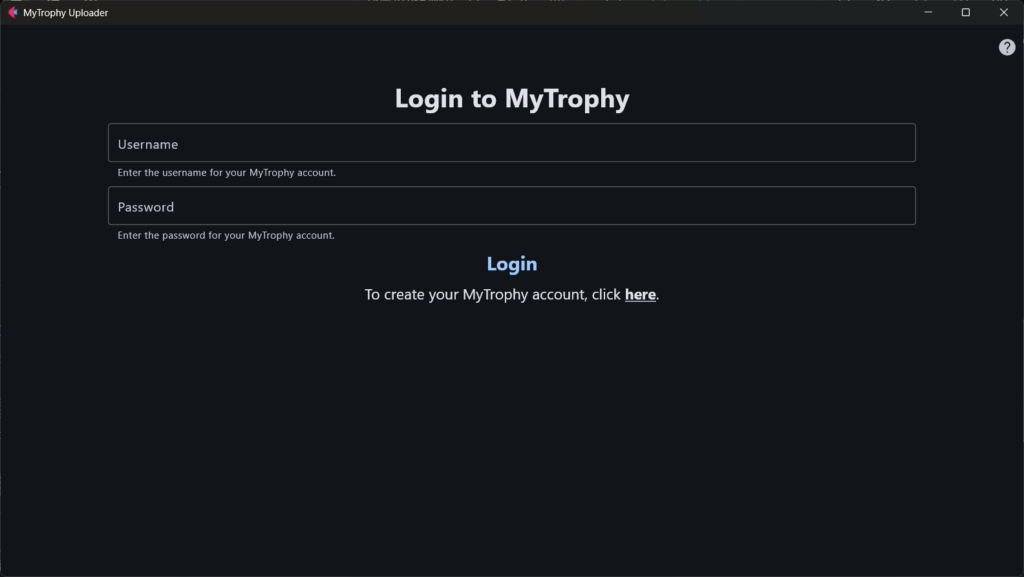
If you already have a MyTrophy account, enter your username and password, then click the ‘Login’ button. If you don’t have a MyTrophy account, click ‘Here’.
STEP2: Sync your PSN trophy information
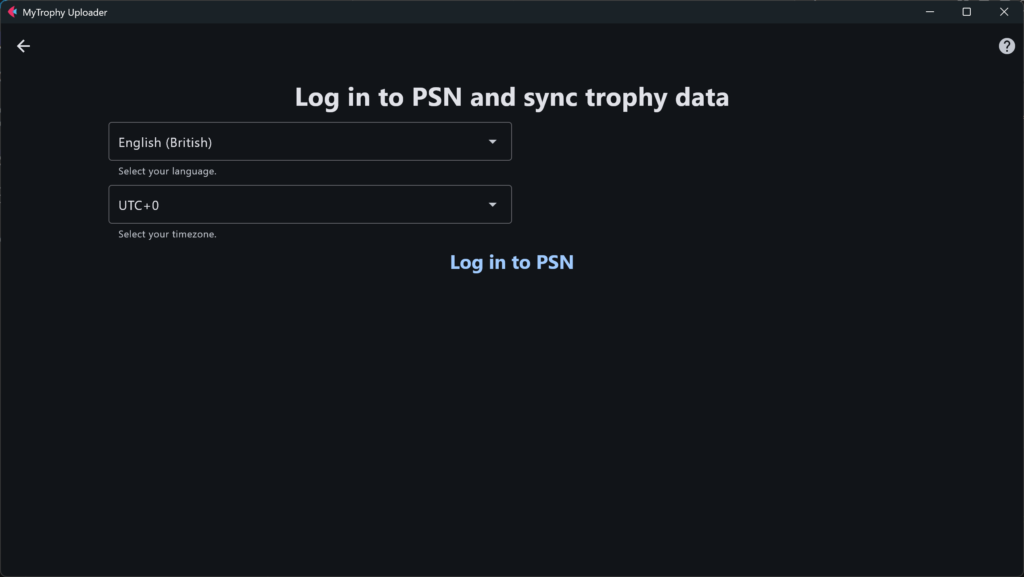
Select your language and timezone, and click the ‘Log in to PSN’ button or ‘Sync” button. If you click the ‘Log in to PSN’ button, the login page will open in another window.
STEP3: Link your trophies with screenshots and clips (optional)
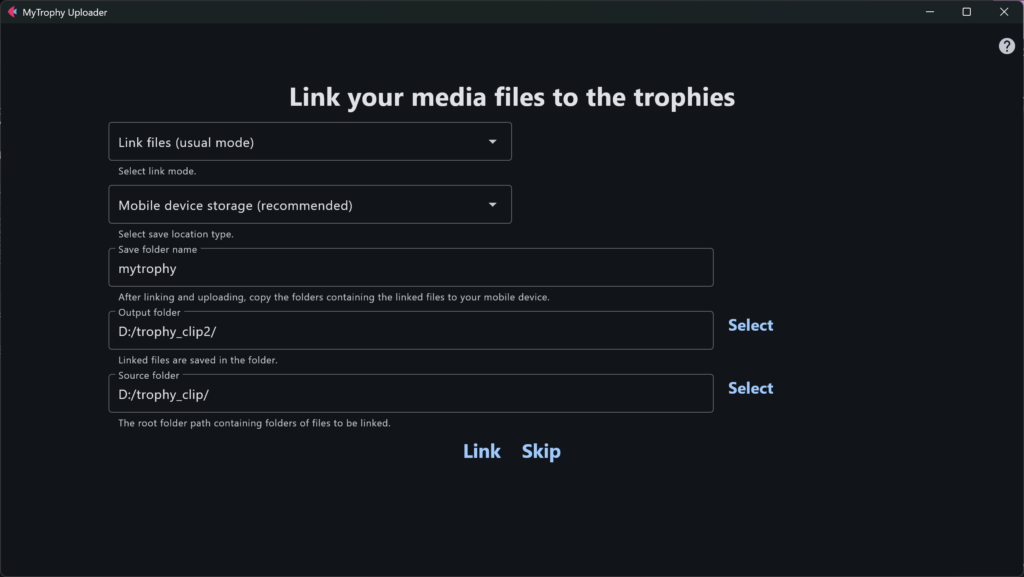
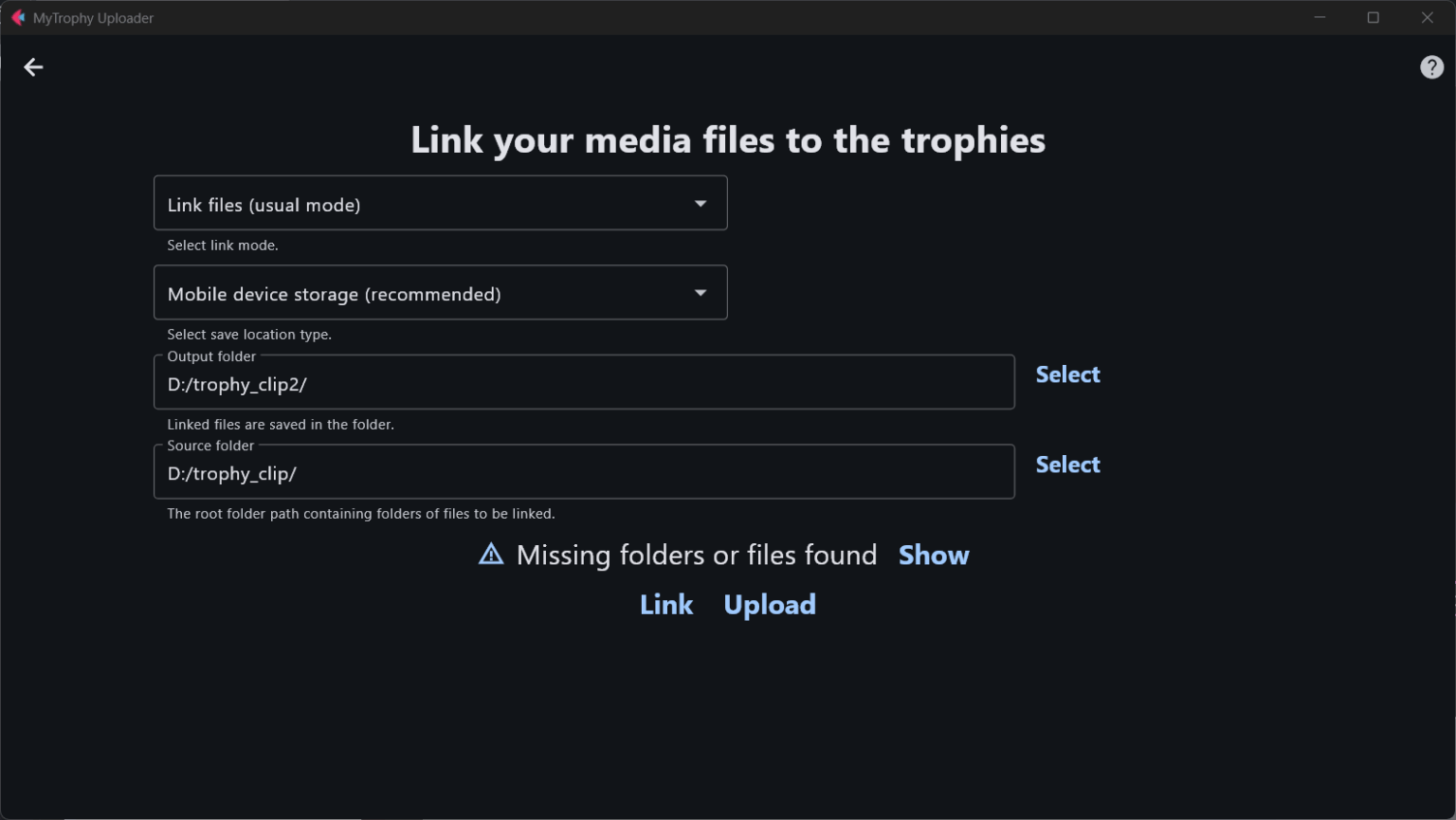
Select your output folder and source folder, then click the ‘Link’ button. If you don’t need to link them, you can skip this step by clicking the ‘Skip’ button. The Save folder name is the name of the folder where files are saved on your mobile device. The output folder is where the linked files are saved. The source folder contains the game-related folders with screenshots and clips captured when a trophy is obtained. In this example, we select ‘trophy_clips2’ folder as output folder and ‘trophy_clip’ folder as source folder.
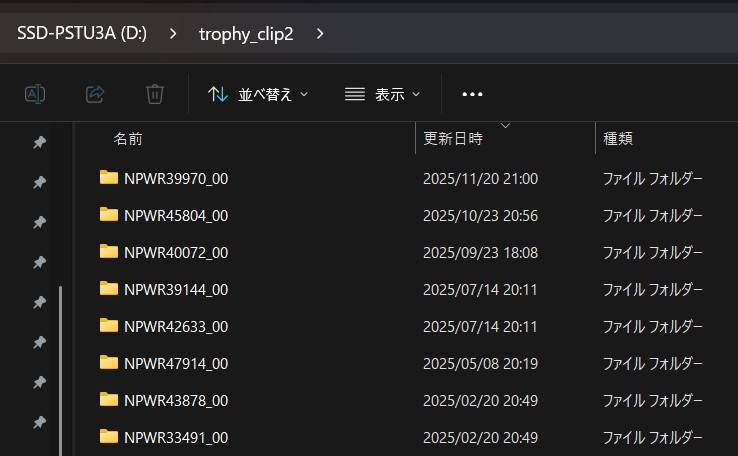
As shown below, linked files are saved in game-related folders such as ‘NPWR39970_00’ within the output folder ‘trophy_clips2’.
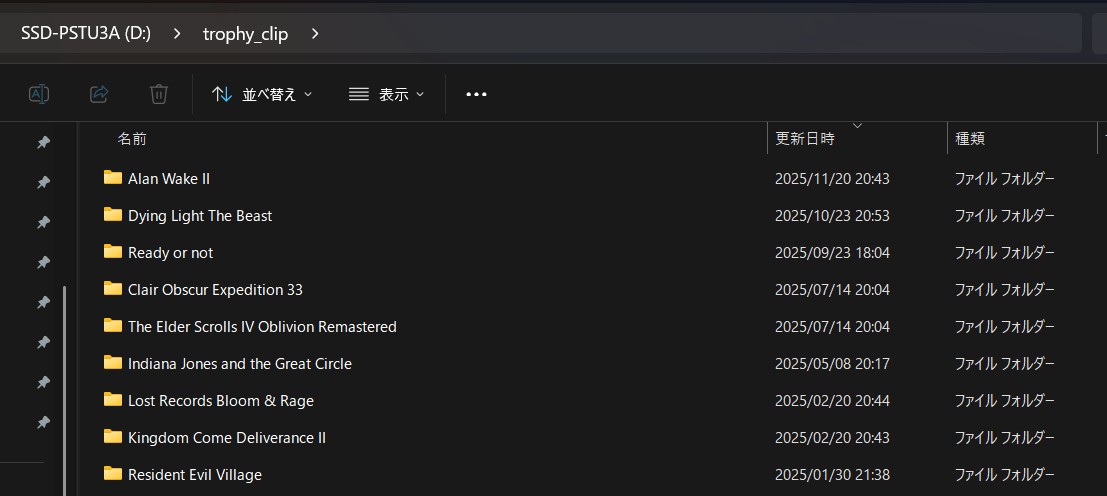
As shown below, the source folder contains the game-related folder with trophy screenshots (jpg files) and clips (mp4 files).
STEP4: Check the missing game folders and files (optional)
Once linking is completed, if any game folders or files are missing, the ‘Show’ button will appear. By clicking this button, you can review the missing items. To upload your trophy data to MyTrophy, click the ‘Upload’ button.
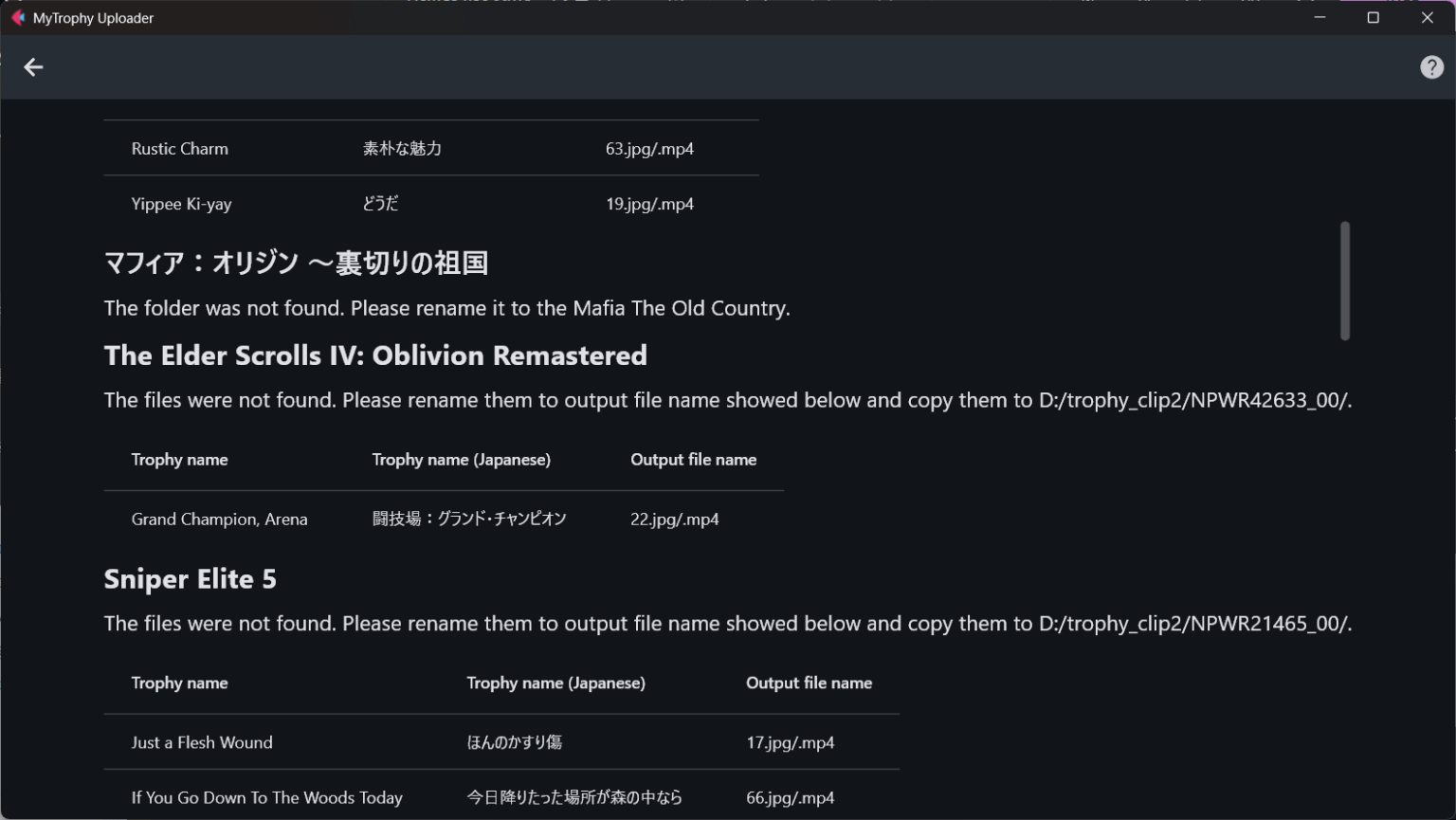
As shown below, if you have the missing game-related folders, rename them to the displayed names. If you have the missing files, rename them to the displayed names and copy them into the displayed folders.
STEP5: Sign up to MyTrophy (optional)
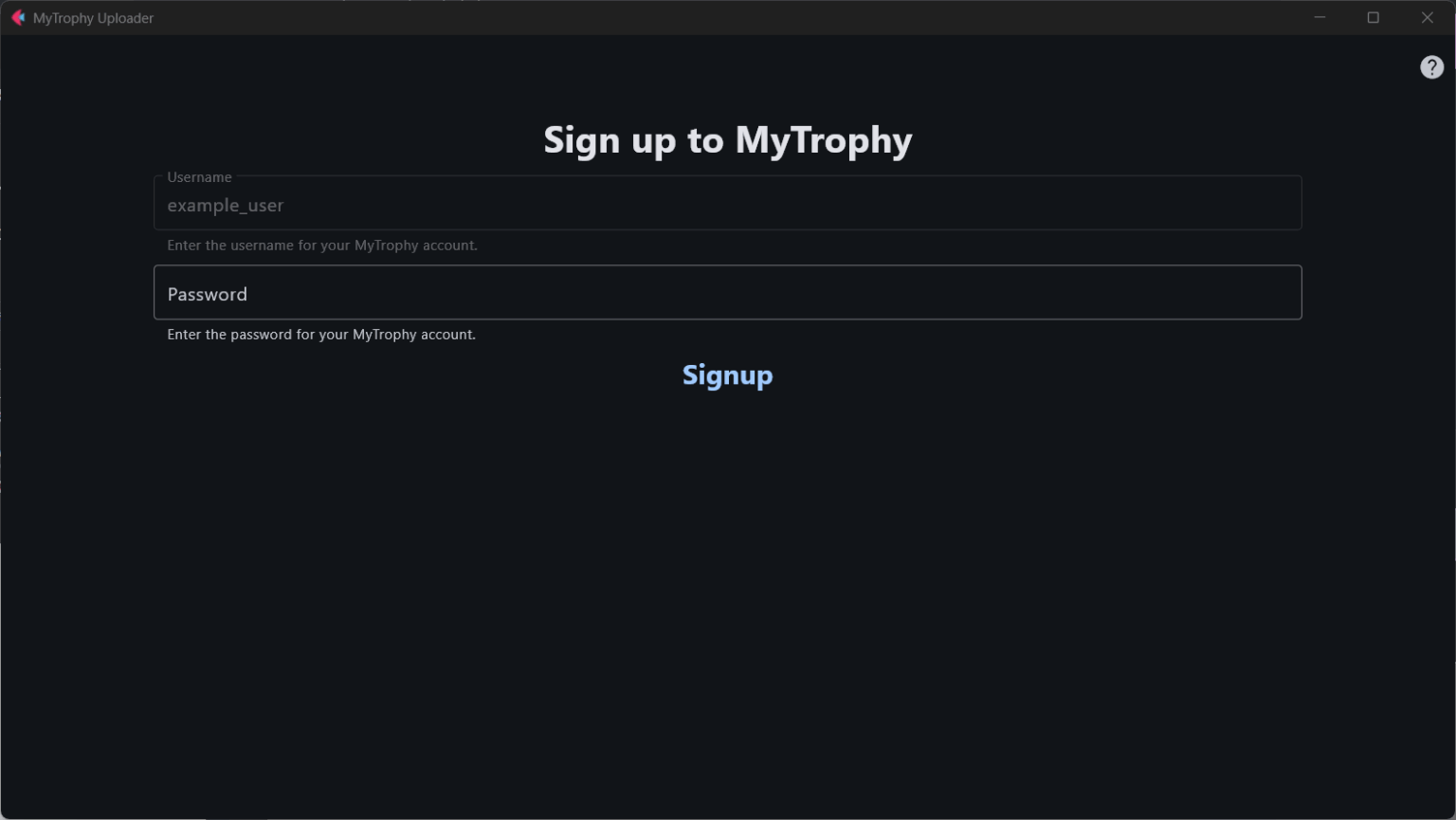
In step 1, if you don’t have a MyTrophy account, the signup page will be displayed. Enter your password, then click the ‘Signup’ button. Your username is your PSN ID and cannot be changed.
STEP6: Copy the folders in the output folder to your mobile device (optional)
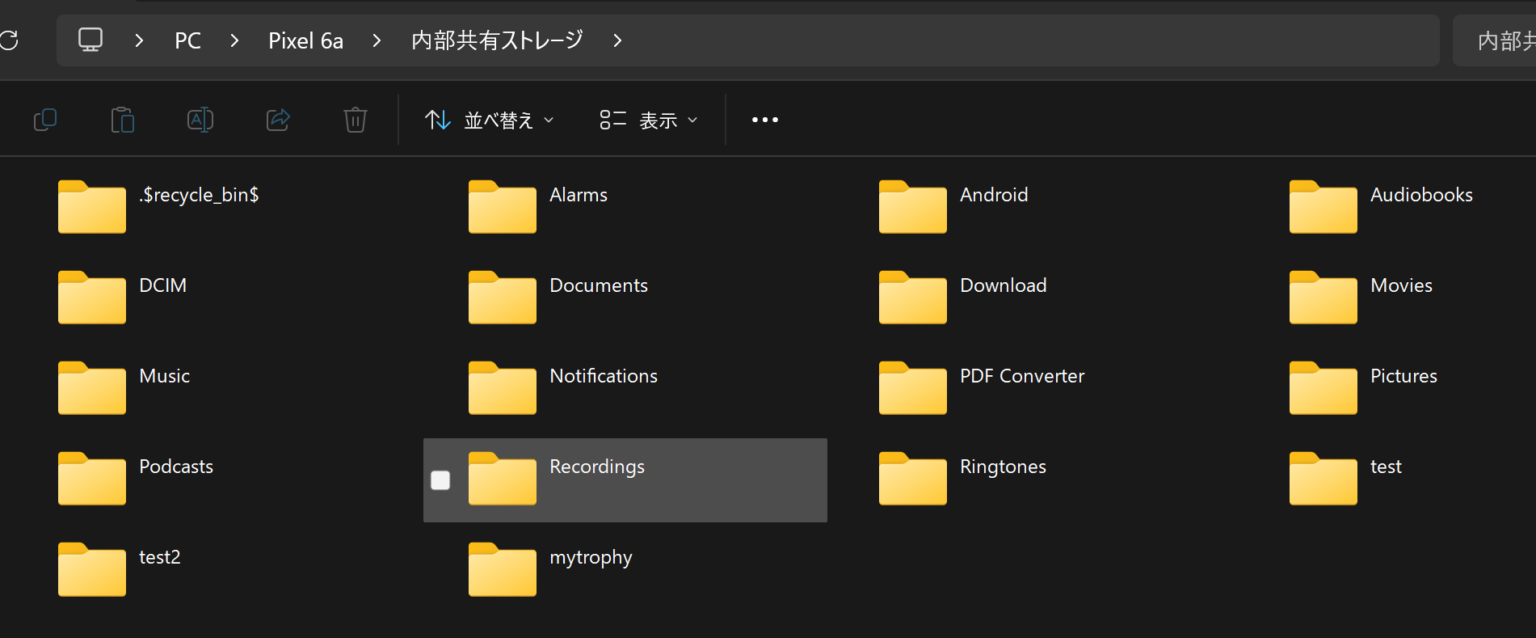
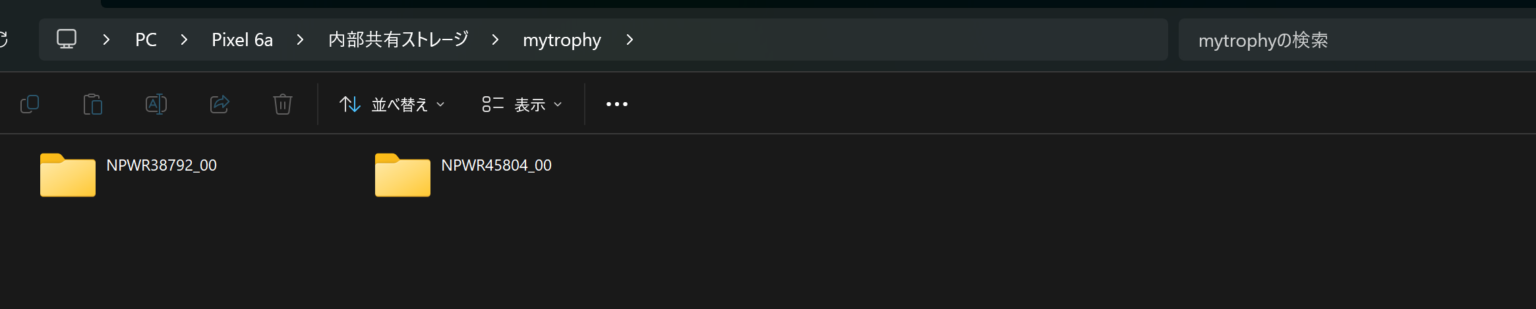
After uploading, copy the folders from the output folder to the folder specified by the save folder name on your mobile device. As shown below, ‘NPWR45804_00’ and ‘NPWR38792_00’ are copied into the ‘mytrophy’ folder. Note that the save folder is located in the root directory of your device.
STEP7: Install HTTP FS app
To view your media files in the MyTrophy app, install the HTTP FS app from the Google Play Store and launch it.
STEP8: Log in to MyTrophy and sync with MyTrophy in the MyTrophy app
Log in to MyTrophy from the account menu in the app. After logging in, the Media tab will appear on both the trophy list page and the trophy page. Next, sync with MyTrophy to view the media files in the app.